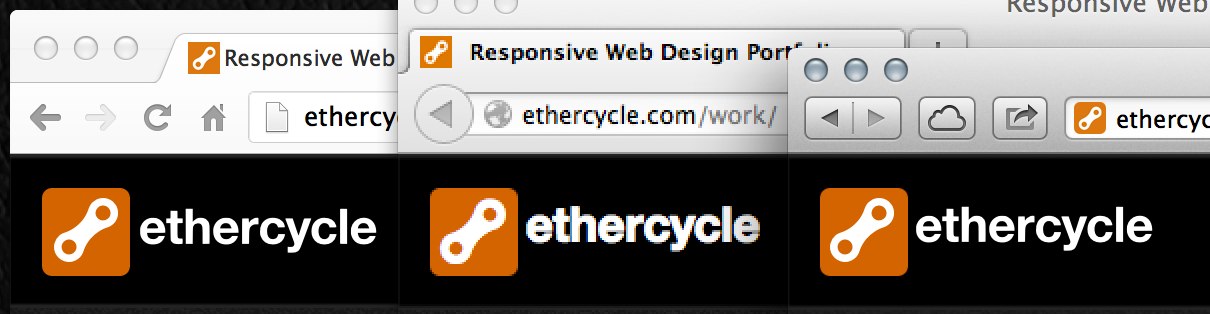
There are certain elements of JavaScript that can be displayed in different ways depending on what browser is being used. This is because each browser has their own version on how to read and run code which causes the outcome to be varied. Because of this inconsistency, it is beneficial to test your website on multiple browser to make sure that the code runs correctly and users will have the same experience on every browser.
Browser detection
Browser detection allows users to see the different properties of the browser in use. These are properties such as; name of the browser, code name of the browser, browser version, whether cookies are enabled, etc…
Developers have to create different versions of code so that the website is compatible with multiple browsers. This allows a wider audience to be able to access the website. The same thing has to be done so that the website is compatible with mobile devices; for example, the layout and size of the website would have to be altered to fit the screen of mobile devices without looking out of proportion.
Using Visual Studio Code, I have created JavaScript code which will present me with the properties of the browser that I have specified. This will allow me to quickly and easily get access to information about the browser I may need to alter and improve the performance and functionality of the website.
After creating a new HTML file, I opened a <script>tag so the browser knew that the code within this tag was JavaScript/client-side script. Within the tag, I wrote function which is a block of code created to perform a specified task – in this case, provided the details of the browser.

I then set up the variables – requesting information about the browser -

Now, when I open this .HTML file in a browser, it will display the browser information that I have specified. A pop-up will appear as well, displaying information about the browser. This pop-up will be the example that I use to demonstrate the way scripts are implemented on different browsers.
Safari

The image above is what first appears when the .HTML file is opened in Safari – there is no browser details on this page. When you click the button ‘Browser Version’, the pop-up will appear along with browser information.

JavaScript running on Safari browser
Google Chrome

The image above is what first appears when the .HTML file is opened in Google Chrome – there is no browser details on this page. When you click the button ‘Browser Version’, the pop-up will appear along with browser information.

JavaScript running on Google Chrome browser
Firefox

The image above is what first appears when the .HTML file is opened in Firefox – there is no browser details on this page. When you click the button ‘Browser Version’, the pop-up will appear along with browser information.

JavaScript running on Firefox browser
Browser Style Sheets
Browsers each have their own CSS that they refer to when presenting content to the user. Because of this, the layout of websites can vary when using different browsers. The code for some websites is written in a way that it is only compatible with one browser and not another – this can create problems for users if they are unable to access/use the browser intended.
This is why developers/websites can benefit from have multiple style sheets (for each browser) so that it is compatible with multiple browsers, increases accessibility and increase the number of users visiting the website.